How to Download and Update Printer Drivers on Windows 10/11 - Step-by-Step Guide 2026
Key Takeaways
- Windows Update includes an Optional Updates section that often contains printer driver updates
- The most reliable method is downloading drivers directly from the manufacturer's official website
- Device Manager offers a quick one-click driver update without any manual downloads
- Microsoft's ongoing driver phaseout means many printers require a manual driver fix in 2026
- All methods in this guide work on both Windows 10 and Windows 11
Knowing how to download and update printer drivers on Windows 10/11 can save a lot of frustration - especially when a printer that worked perfectly yesterday suddenly shows as offline or unavailable. Driver issues are one of the most common causes of printer failures, and in 2026, Microsoft's phaseout of legacy V3 and V4 drivers has made this problem even more widespread. The good news is that updating a printer driver takes just a few minutes once the right method is identified for the situation.
How to Download and Update Printer Drivers on Windows 10/11
Method 1: Update Printer Driver Through Windows Update
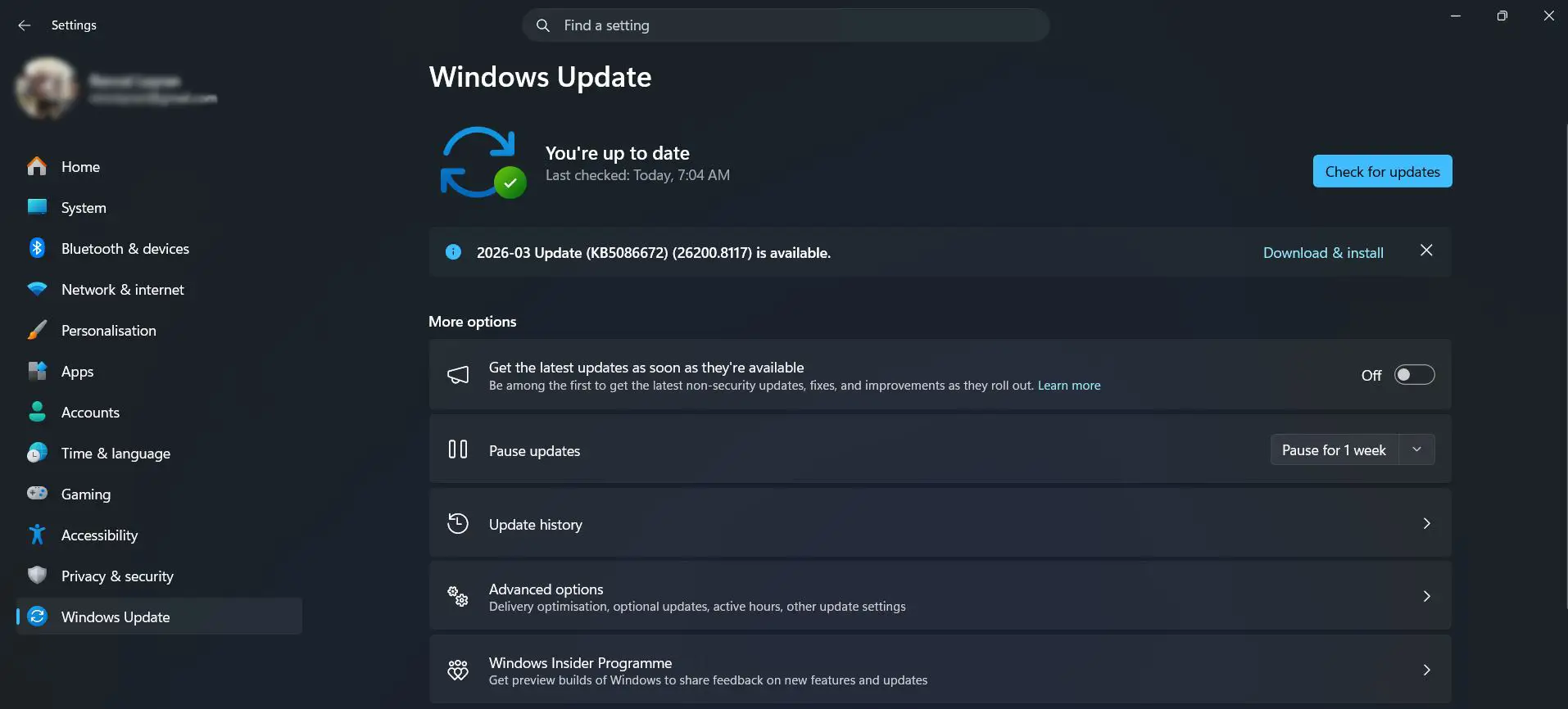
Windows Update is the easiest starting point. It handles driver downloads automatically and works well for mainstream printer brands still supported in Microsoft's driver catalog.
Run Windows Update first:
- Step 1: Press Windows + I to open Settings
- Step 2: Click Windows Update in the left sidebar
- Step 3: Click Check for updates and wait for the scan to finish
- Step 4: If a printer driver update appears, click Download and install
- Step 5: Restart the computer if prompted
Check Optional Updates - this step is easy to miss:
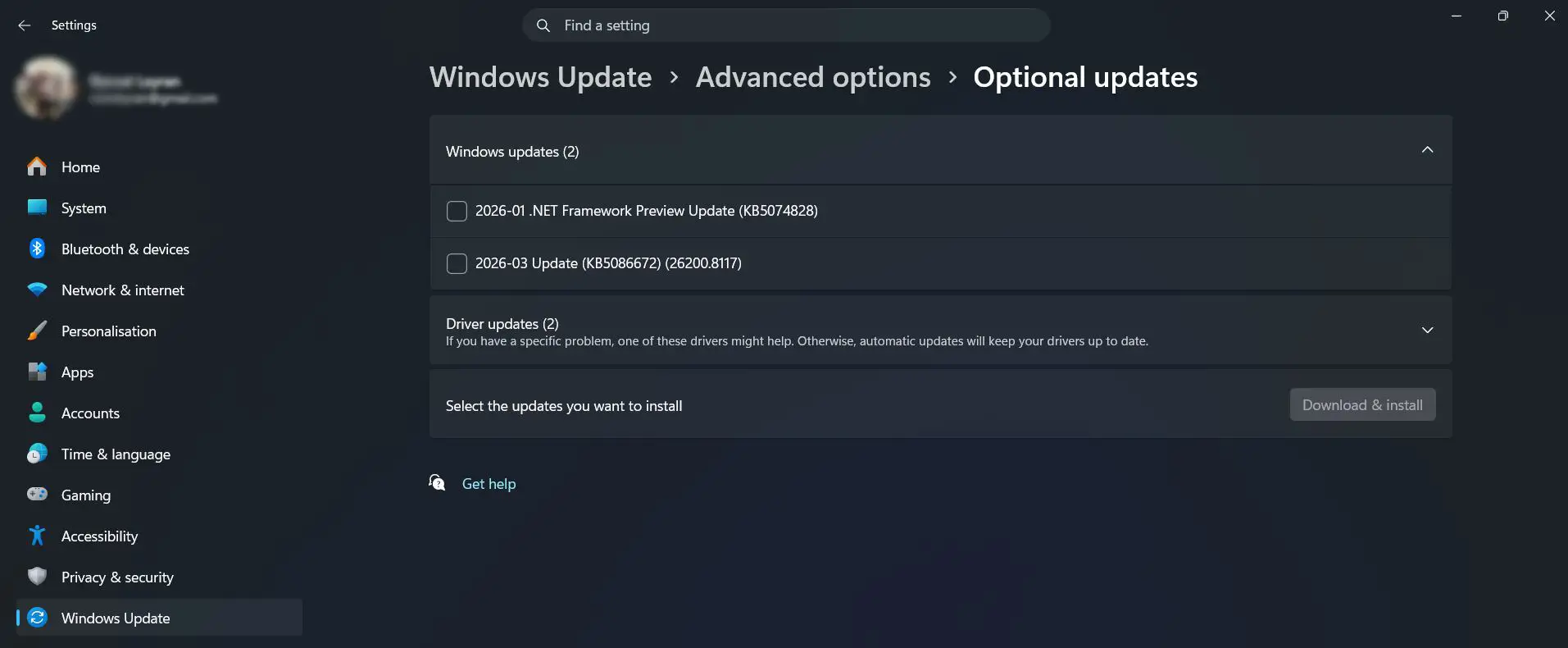
- Step 1: On the Windows Update page, click Advanced options
- Step 2: Click Optional updates
- Step 3: Expand Driver updates if the section appears
- Step 4: Check the box next to any printer driver listed
- Step 5: Click Download and install
On Windows 10, go to Settings > Update and Security > Windows Update > View optional updates instead.
If no driver is found here, move on to Method 2 - it is more reliable for most situations in 2026.
Method 2: Download Printer Driver from the Manufacturer's Website
This is the most reliable method available. Manufacturers publish updated drivers on their official sites well before Microsoft includes them in Windows Update. This is also the recommended fix when a printer shows 'Driver unavailable' after a recent Windows update.
Official driver download pages by brand:
- HP: support.hp.com/us-en/drivers/printers
- Canon: usa.canon.com/support/software-and-drivers
- Epson: epson.com/Support/Printers
- Brother: brother-usa.com/brother-support/driver-downloads
- Samsung: samsung.com/us/support/downloads
- Xerox: xerox.com/en-us/office/software-solutions/global-printer-driver
- Lexmark: support.lexmark.com/en_us/drivers-downloads
- Ricoh: ricoh-usa.com/en/support-and-download
- Kyocera: kyoceradocumentsolutions.us/en/support/downloads
- Dell: dell.com/support/product-details/en-us/product/dell-open-prnt-drivr/drivers
Find the printer model number:
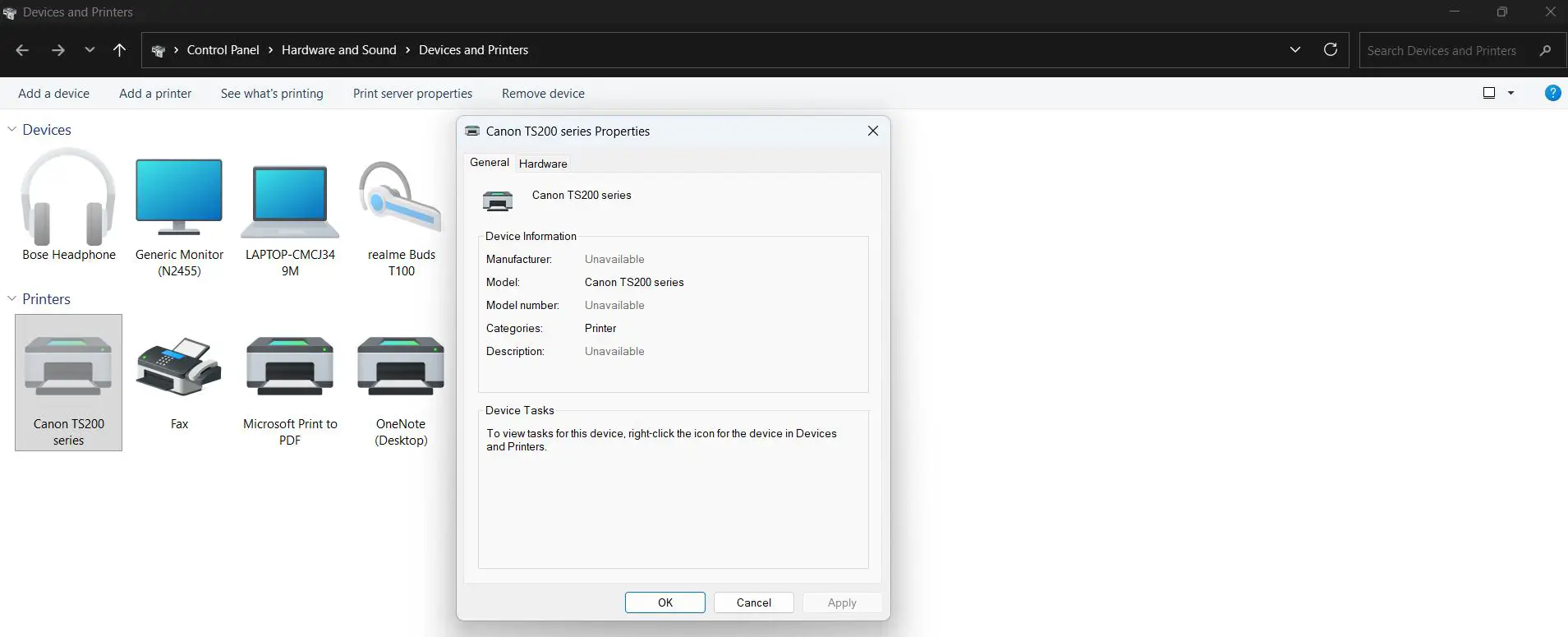
- Step 1: Press Windows + I and go to Bluetooth and devices > Devices
- Step 2: Scroll down and click More devices and printer settings
- Step 3: Right-click the printer icon and select Properties
- Step 4: Note the full printer model name shown in the window
On Windows 10, go to Settings > Devices > Printers and scanners instead.
Download and install the driver:
- Step 1: Visit the manufacturer's official support page using the links above
- Step 2: Type the exact printer model into the search field
- Step 3: Select Windows 11 or Windows 10 from the operating system dropdown
- Step 4: Download the latest driver file - usually an .exe or .zip
- Step 5: Open the Downloads folder and double-click the file to run it
- Step 6: Follow the installation wizard and accept the license terms
- Step 7: Restart the computer after installation completes
Method 3: Update Printer Driver Through Device Manager
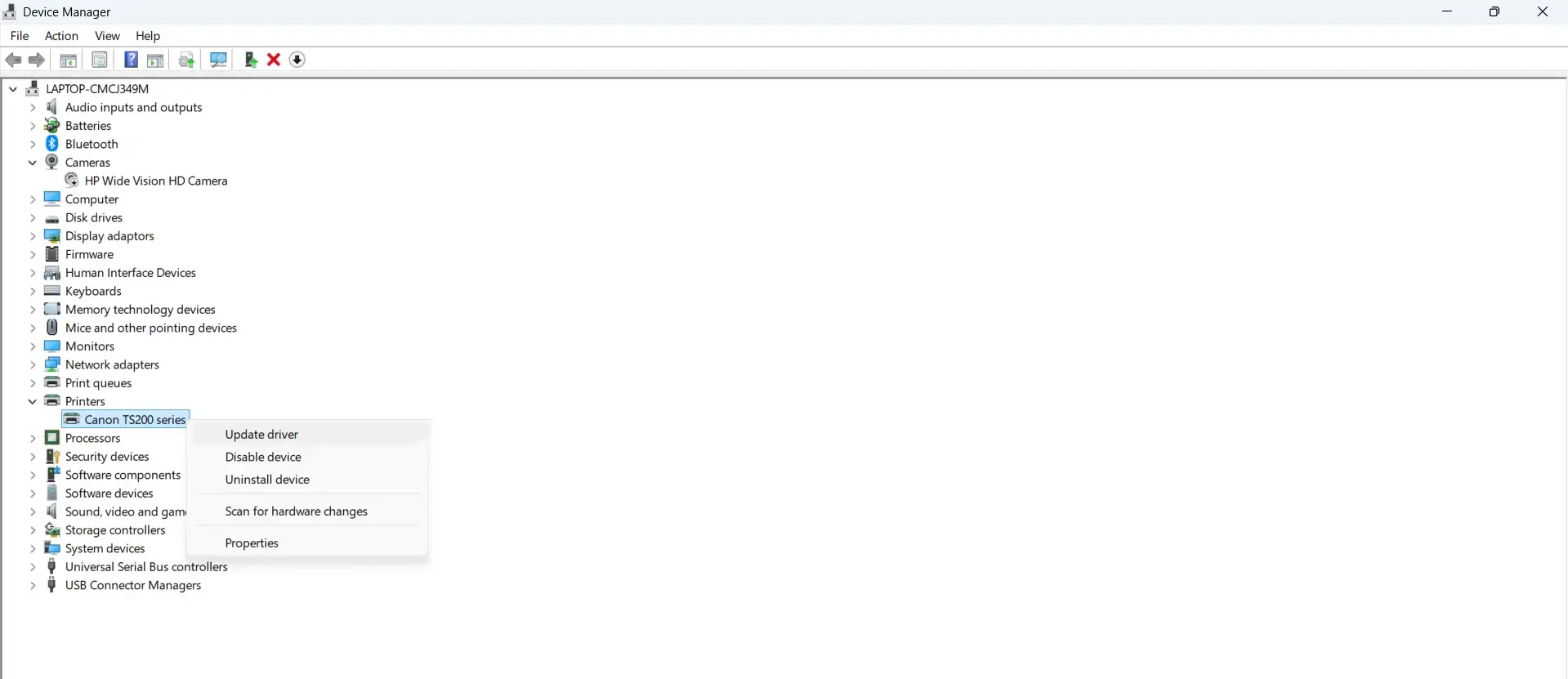
Device Manager gives direct access to hardware settings and lets Windows search for an updated driver automatically. This method takes under a minute and requires no manual downloads - though it only searches Microsoft's catalog, not manufacturer servers.
- Step 1: Right-click the Start button and select Device Manager
- Step 2: Expand the Printers or Print queues category
- Step 3: Right-click the printer name and choose Update driver
- Step 4: Select Search automatically for drivers
- Step 5: Follow any on-screen prompts and let the installation finish
- Step 6: Close Device Manager once complete
If Windows reports that the best driver is already installed but the printer still is not working, skip to Method 2. Device Manager cannot access the manufacturer's own driver servers.
Method 4: Use the Add Printer Driver Wizard
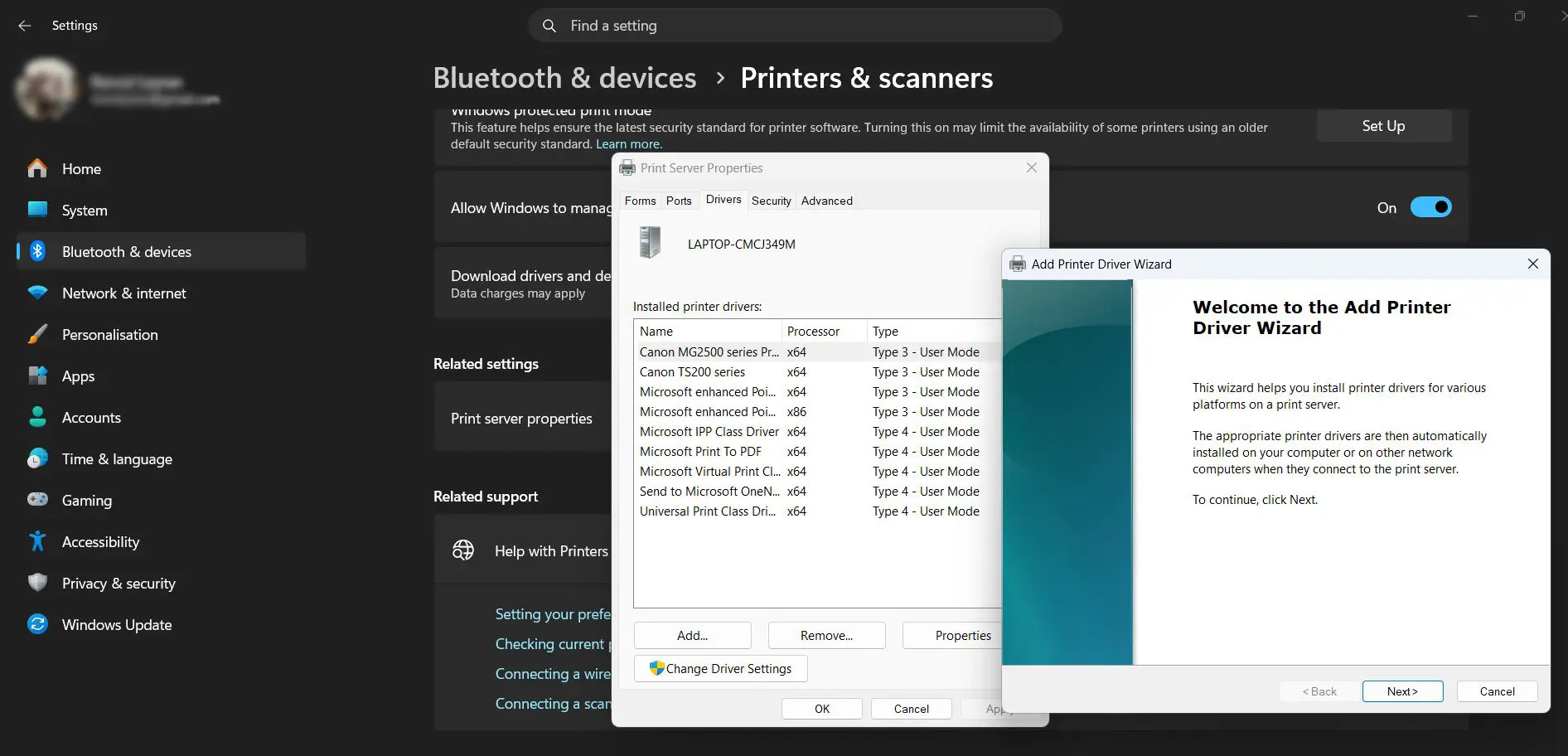
This is a legacy fallback that works well for older printers not found through the standard update channels. The wizard connects directly to Windows Update and pulls an expanded list of drivers - including many that do not appear through normal update settings.
- Step 1: Go to Settings > Bluetooth and devices > Printers and scanners
- Step 2: Under Related settings, click Printer server properties
- Step 3: Select the Drivers tab
- Step 4: Click Add to launch the Add Printer Driver Wizard
- Step 5: Click Next on the Welcome screen
- Step 6: Select the processor architecture - most modern PCs use x64
- Step 7: Click Windows Update on the Printer Driver Selection page and wait for the expanded list to load
- Step 8: Choose the printer manufacturer from the left column and the exact model from the right
- Step 9: Click Next, then Finish
Note that this wizard installs a driver only - it does not add the printer to the system. If the printer is not yet listed in Windows, use Add device under Printers and scanners first.
Method 5: Reinstall the Printer Completely
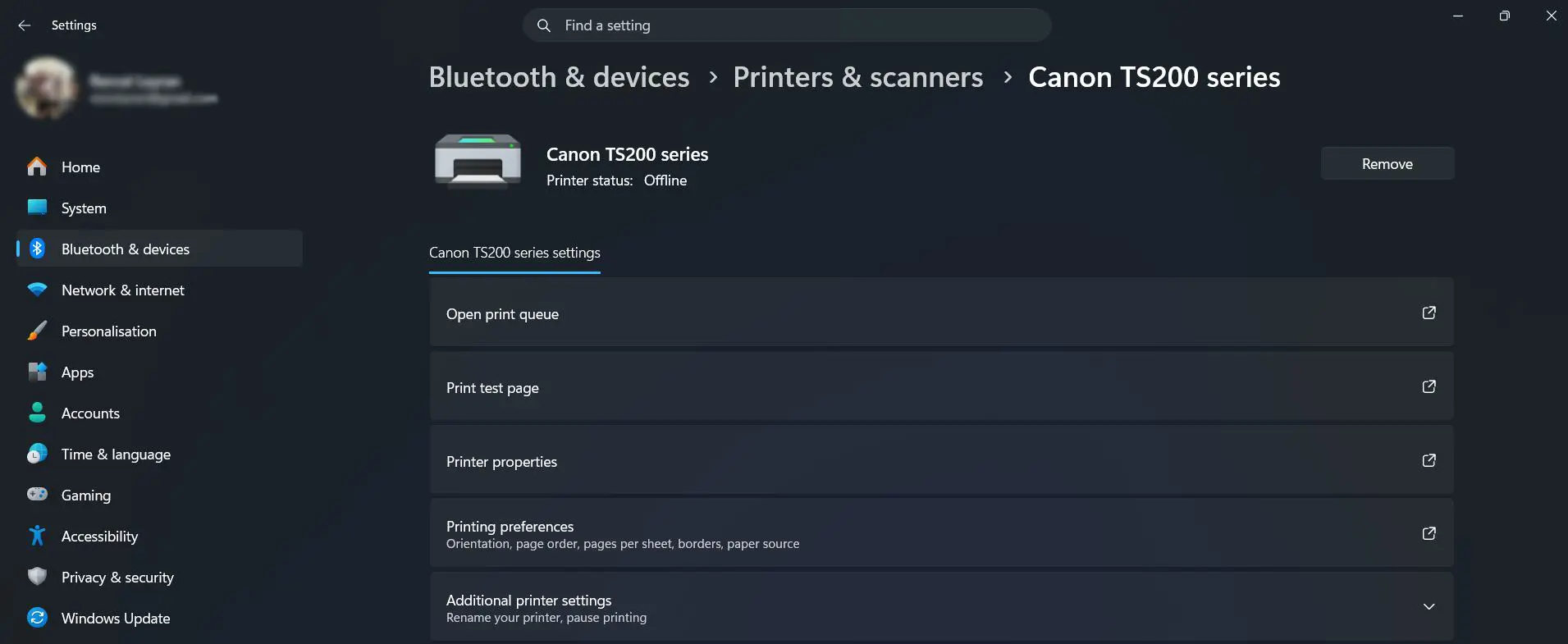
When nothing else works, a full reinstall is often the cleanest fix. Removing the printer entirely wipes any corrupted driver association and forces Windows to start fresh - pulling a clean driver on the way back in. This is especially effective after a major Windows update breaks an existing setup.
- Step 1: Press Windows + I and go to Bluetooth and devices > Printers and scanners
- Step 2: Click the printer in the list and select Remove
- Step 3: Once removed, click Add device at the top of the page
- Step 4: Follow the on-screen prompts to reinstall the printer
- Step 5: After reinstalling, run Windows Update or use Method 2 to install the latest driver
On Windows 10, go to Settings > Devices > Printers and scanners, click the printer, select Remove device, then use Add a printer or scanner to reinstall.
Tips for Keeping Printer Drivers Up to Date
- Check for driver updates every three to six months, even when the printer appears to be working fine - manufacturers release bug fixes and security patches on a rolling basis
- After any major Windows update, open Device Manager and check the printer's driver date - anything older than the update itself may need refreshing
- Bookmark the manufacturer's official driver page for the specific printer model - it saves time when troubleshooting later
- If a driver update resets print quality or paper settings, note the preferred settings before installing so they can be restored quickly
- After downloading a driver from a manufacturer site, always verify the file before running it - most legitimate installers are in .exe or .msi format and come from the brand's own domain
Common Problems When Downloading and Updating Printer Drivers
Windows says the best driver is already installed, but the printer still does not work - Device Manager only checks Microsoft's catalog. Go directly to the manufacturer's website and download the latest driver manually. The newest version available from the brand often differs from what Windows knows about.
Printer shows as 'Driver unavailable' after a Windows update - This is a direct result of Microsoft's 2026 V3 and V4 driver phaseout. The fix is to download a current driver from the manufacturer's support page using Method 2. Windows Update will not resolve this automatically for affected models.
The installer runs but the printer still does not respond - A clogged print spooler can block a freshly installed driver from working. Press Windows + R, type services.msc, stop the Print Spooler service, then delete all files inside C:\Windows\System32\spool\PRINTERS without deleting the folder itself. Restart the service and try again.
Driver installation fails or freezes partway through - Temporarily disable antivirus software during installation. Some security tools flag driver installers as suspicious and interrupt the process. Re-enable antivirus immediately after the installation completes.
Printer works on Windows 10 but not after upgrading to Windows 11 - Some older printer models never received dedicated Windows 11 drivers. Check the manufacturer's site specifically for a Windows 11 driver. If one is not listed, try the Add Printer Driver Wizard in Method 4, which sometimes surfaces generic compatible drivers.
Downloaded driver file will not open or shows as corrupted - The download may have been interrupted. Delete the file and download it again directly from the manufacturer's official support page. Avoid saving to external drives or shared folders - download straight to the local Downloads folder.
Frequently Asked Questions
How do printer drivers get outdated on Windows 11 and Windows 10?
Printer drivers can become outdated in a few different ways. Major Windows updates sometimes replace or remove older driver files. Manufacturers release new driver versions to fix bugs, improve compatibility, or add features - and those updates do not install automatically unless Windows Update picks them up. In 2026, Microsoft's phaseout of legacy V3 and V4 drivers has caused many previously working printers to lose their driver without warning.
Is it safe to download printer drivers from the manufacturer's website?
Yes, downloading directly from the official manufacturer domain is completely safe. The key is verifying the URL belongs to the brand - for example, support.hp.com for HP or usa.canon.com for Canon. Avoid third-party driver download sites, which sometimes bundle unwanted or harmful software alongside the driver.
Can a printer driver be updated without an internet connection?
Yes, but options are limited. If the printer came with a disc or USB installer, that package includes a driver that can be installed offline. The driver version will likely be outdated, so updating through the manufacturer's website as soon as internet access is available is strongly recommended. Device Manager also has a 'Browse my computer for drivers' option that can install a driver file already saved locally.
What is the difference between a full driver package and a basic driver?
A basic driver handles core print functions only - sending a document to the printer and getting output. A full driver package includes additional software like scanning utilities, ink level monitors, maintenance tools, and advanced print settings. For everyday home or office printing, a basic driver is usually enough. The full package is worth installing when all printer features - especially scanning on an all-in-one model - need to be accessible from Windows.
Does uninstalling a printer driver affect other printers on the same computer?
No. Each printer driver is tied to its specific device and does not interfere with drivers installed for other printers. Removing or updating one printer's driver leaves all other printers and their drivers completely unaffected. The only shared component is the Print Spooler service, which manages all print jobs system-wide - but that is not altered by uninstalling a single printer driver.
Why does the printer driver keep reverting after every Windows update?
This usually happens when Windows Update replaces a manually installed driver with an older version from its own catalog. To prevent this, the driver can be set to not update automatically. Open Device Manager, right-click the printer, select Properties, go to the Driver tab, and use the driver rollback or update settings. Alternatively, downloading the latest driver from the manufacturer's site immediately after each Windows update is the most straightforward way to stay current.
Can the wrong printer driver cause damage to the printer or computer?
Installing an incorrect driver will not physically damage the printer or computer. The worst typical outcome is that the printer stops responding, prints incorrectly, or loses certain features. Windows can usually detect a driver mismatch and flag the device with an error in Device Manager. The fix is simply to uninstall the incorrect driver and install the right one using the methods covered in this guide.
How can the current printer driver version be checked on Windows?
Open Device Manager by right-clicking the Start button. Expand Printers or Print queues, right-click the printer, and choose Properties. Select the Driver tab to see the driver version number, driver date, and provider. Compare this against the manufacturer's website to see if a newer version is available.
Why does Windows Update say no driver update is available when the printer is not working?
Windows Update only searches Microsoft's driver catalog, which does not always include the latest releases from manufacturers. Many printers - especially those affected by the 2026 driver phaseout - are simply no longer covered in that catalog. Downloading directly from the manufacturer's support page is the reliable alternative in these cases.
Do these driver update methods work the same on Windows 10 and Windows 11?
Yes. All five methods in this guide work on both operating systems. The menu paths and setting names are nearly identical. Where differences exist - such as the location of the Optional Updates section or the Printers and scanners page - those differences are noted within each method above.
How often should printer drivers be updated?
Checking every three to six months is a reasonable routine. Most users do not need to update more frequently than that. The exception is when a problem appears - an offline printer, missing features, or a 'Driver unavailable' error - in which case checking for an updated driver should be the first step in troubleshooting.
Will updating a printer driver erase saved settings like paper size or print quality?
Most driver updates preserve existing preferences. Major version changes occasionally reset settings to defaults. It is a good habit to write down any custom print settings - paper size, quality, duplex mode - before running a driver update, so they can be restored quickly if needed.
What should be done after a printer driver update is installed?
Print a test page to confirm the driver is working correctly. On Windows 11, go to Settings > Bluetooth and devices > Printers and scanners, click the printer, and select Print test page. On Windows 10, go to Settings > Devices > Printers and scanners, click the printer, choose Manage, then Print a test page. Also review print preferences to make sure any custom settings are still in place.